TRACK 01 · 01:36 · NOW SPINNING
Your Mac has a CD player again.
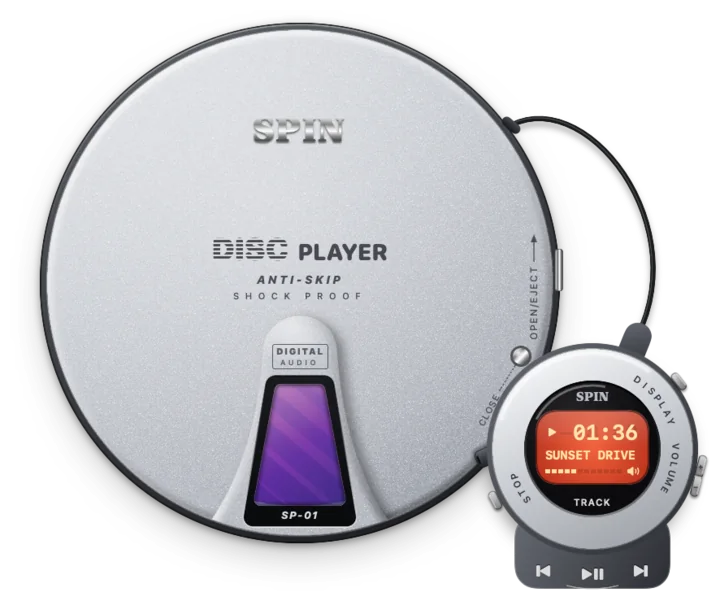
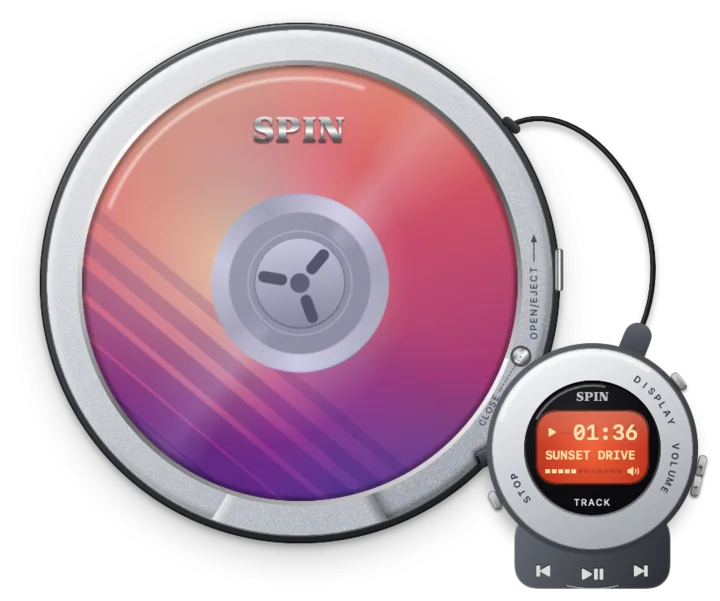
A 2000s portable CD player that floats on your desktop and plays whatever Spotify is playing. The disc turns, the lid pops open, the remote clicks.
- Spotify Free or Premium
- No login
- macOS 14+ · Apple Silicon
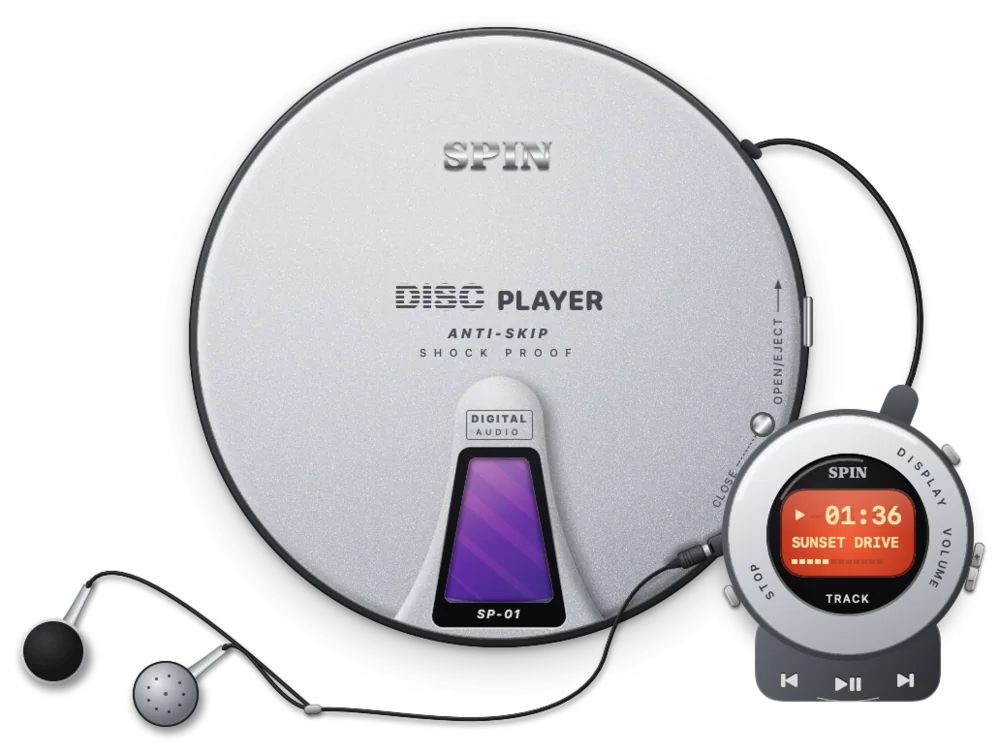
Spotify changes track → the LCD updates → lid opens → disc slows → close the lid → it keeps playing.
TRACK 02 — FEATURES
Every detail you remember. Some you forgot.
Drawn top-down, part by part, from the thin magnesium players of the early 2000s. It doesn’t emulate a skin; it behaves like the object.
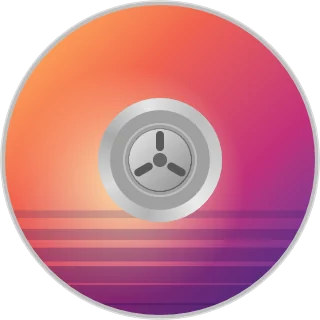
The disc actually spins
Your album art is printed on the disc. Pause and it coasts to a stop; skip and the art changes.
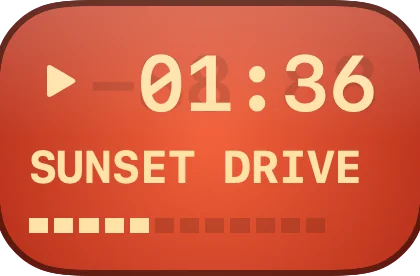
A remote with a backlit LCD
Scrolling artist and title, a progress bar, and an amber backlight that fades after five seconds — like the real thing.
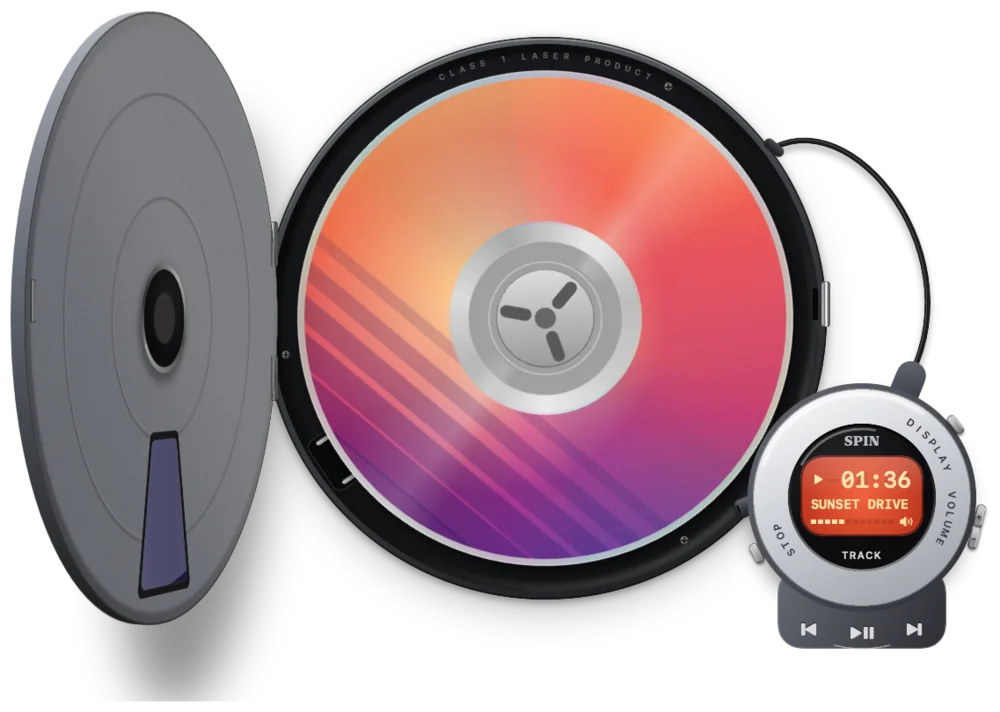
Open the lid, pause the music
The lid springs up on its hinge and the disc brakes. Close it and Spotify carries on.
- Real keys, real legendsPlay, previous and next on the rim. Scroll over the remote to change the volume.
- Knows your headphonesWired headphones plug into the remote; AirPods light a tiny glyph on the LCD.
- Clicks you can feelEvery key, latch and plug has its own synthesized click. Turn them off anytime.
- Floats over everythingFollows you across Spaces; empty corners let clicks pass through.
B-SIDE — FINISHES
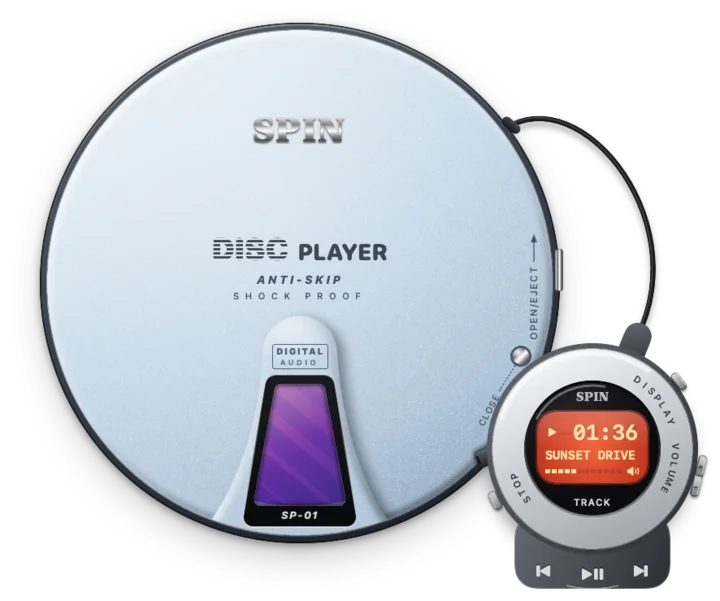
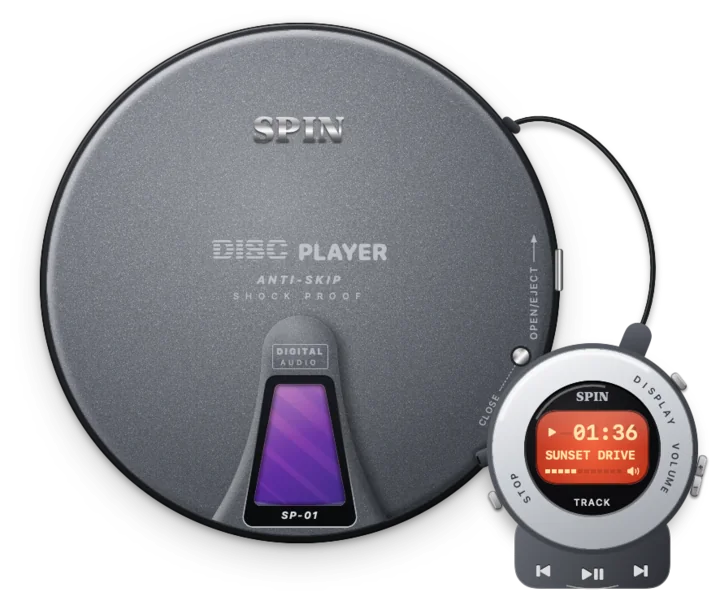
Three finishes and a see-through lid.
Right-click the player to change it. Try them here.
TRACK 03 — NO LOGIN
Why there’s no “Sign in with Spotify”.
Spin talks to the Spotify app already running on your Mac, through AppleScript — the same plumbing Shortcuts and a hundred menu-bar utilities use.
- No account linkingSpin never sees your Spotify login.
- No user capWeb-API apps start limited to a handful of approved users. Spin isn’t, so anyone can have it.
- Free accounts welcomeNo Premium-only playback SDK involved.
- Nothing to breakNo tokens to expire, no servers to go down.
TRACK 04 — INSTALL
Install in a minute. One honest detour.
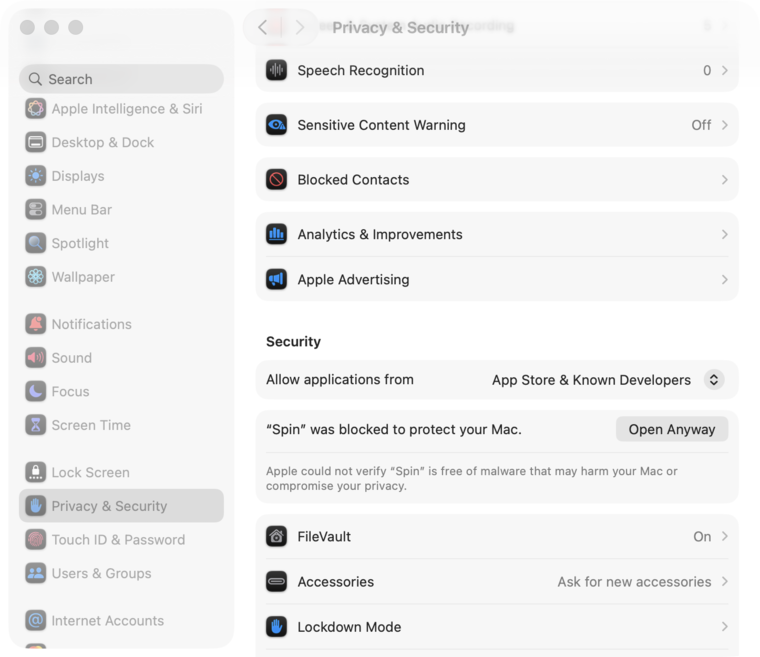
Spin isn’t notarized — that needs a paid Apple Developer membership, and Spin is a free side project. So macOS blocks the first open. Here’s the whole dance.
Drag Spin to Applications
Open
Spin-0.1.0.dmgand drag Spin onto the Applications folder.
Check the download
In Terminal, this should print the same SHA-256 as below:
shasum -a 256 ~/Downloads/Spin-0.1.0.dmg3231bb1e6488417568e0966fd3096cf9abcdf33e1f2fc2dabb1940c890d8bd45Open it, then click Open Anyway
macOS says it can’t verify the developer — click Done. Go to System Settings › Privacy & Security, click Open Anyway and confirm. Only once.
Let Spin control Spotify
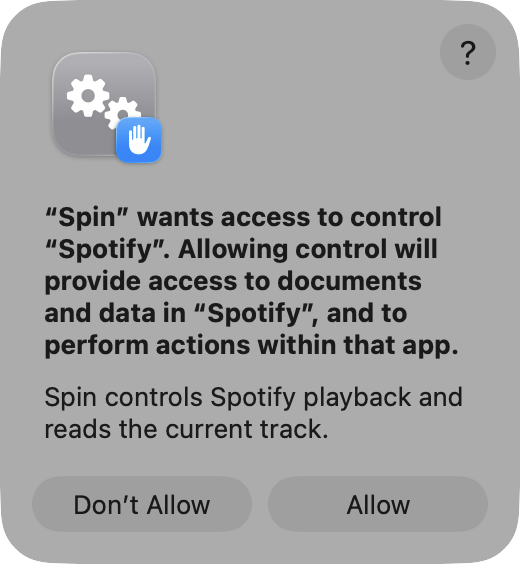
macOS asks: “Spin” wants access to control “Spotify”. Click Allow. Missed it? Privacy & Security › Automation › Spin.
xattr -dr com.apple.quarantine /Applications/Spin.appOnly bypass Gatekeeper for apps you trust. Spin has no installer: deleting the app removes it.
TRACK 05 — FAQ
Questions, answered.
Is it really free?
Yes. No ads, no account, no trial, nothing to unlock.
Do I need Spotify Premium?
No. It works with Free and Premium — it only needs the Spotify desktop app.
What does Spin collect?
Nothing. There are no analytics, no accounts and no servers. The only thing it downloads is the album art for the track you are playing, from the address Spotify itself reports.
Does it work without Spotify?
It needs the Spotify desktop app running. Spin never launches Spotify on its own; while Spotify is closed the LCD reads NO DISC.
Does it run on Intel Macs?
Not yet. This build is for Apple Silicon Macs running macOS 14 Sonoma or later.
Why does macOS ask for permission again after an update?
Spin is signed ad hoc rather than with a paid Apple Developer ID, and macOS ties the Automation permission to the signature. Click Allow again and it carries on.